
Kllustr is a business management platform built for multi-location sales and purchase operations. It brings together everything you need to run daily operations in one place, from inventory and menu management to point-of-sale, tills, stock requests, and financial reports.
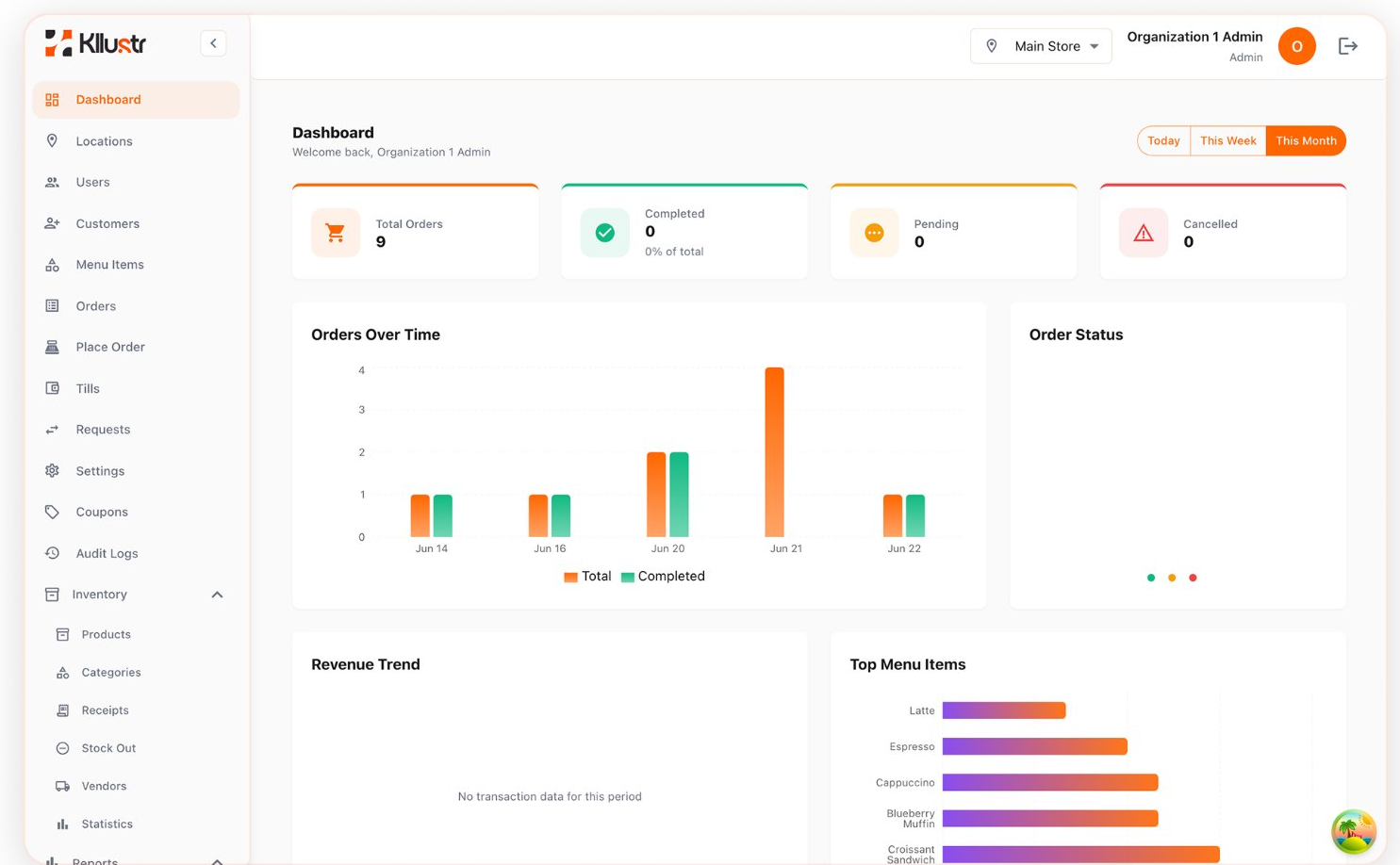
Kllustr is designed for:
| Module | What it does |
|---|---|
| Dashboard | Overview of sales, orders, inventory alerts, and key metrics |
| Stores | Retail stores and warehouses across your business |
| Users | Staff accounts, roles, and store assignments |
| Inventory | Products, categories, vendors, receipts, stock-out, statistics |
| Menu | Menu items linked to inventory, recipes, stock in/out |
| Stock Requests | Stores request stock from warehouses; warehouses fulfill |
| POS | Take orders and payments at the counter |
| Orders | View and manage all orders placed at your location |
| Customers | Customer records for loyalty and order history |
| Coupons | Discount codes applied at POS |
| Tills | Cash drawer sessions: open, close, movements |
| Reports | Sales, revenue, P&L, menu popularity, and more |
| Settings | Currency, discount, and tax configuration |
| Audit Logs | Track who changed what and when |
Almost everything in Kllustr belongs to a location, a store or warehouse you work in.
When you switch locations, you switch which branch’s data you are viewing and editing.
This guide walks you through the essential steps to get Kllustr running for your business.
Go to the login page and sign in with your credentials.
Demo accounts (password for all: 123):
| Role | |
|---|---|
| Admin | admin@org1.com |
| Manager | manager@org1.com |
| Shopkeeper | shop@org1.com |
After login you land on the Dashboard (admins and managers) or POS (shopkeepers).
Use the store switcher in the top bar to pick the store or warehouse you are working in.

All inventory, menu, orders, and reports are scoped to this store.
Complete these steps in order for a new store:
| Step | Area |
|---|---|
| 1 | Stores |
| 2 | Users |
| 3 | Settings |
| 4 | Inventory > Categories |
| 5 | Inventory > Vendors |
| 6 | Inventory > Products |
| 7 | Inventory > Receipts |
| 8 | Menu |
| 9 | Finance > Tills |
| 10 | POS |
Before placing orders at POS:
Not every user sees every module. Check Roles & Permissions to see what your role can access.
| Role | Typical focus |
|---|---|
| Admin | Full setup: locations, users, inventory, settings |
| Manager | Inventory, stock requests, reports, locations (view/edit) |
| Shopkeeper | POS, orders, menu (view), tills |
Browse the module guides in the sidebar, each section covers how to add and manage data step by step.
Documentation for this section is being prepared. Check back soon, or contact support@kllustr.com if you need help with it today.
Documentation for this section is being prepared. Check back soon, or contact support@kllustr.com if you need help with it today.
Documentation for this section is being prepared. Check back soon, or contact support@kllustr.com if you need help with it today.
Documentation for this section is being prepared. Check back soon, or contact support@kllustr.com if you need help with it today.
Documentation for this section is being prepared. Check back soon, or contact support@kllustr.com if you need help with it today.
Documentation for this section is being prepared. Check back soon, or contact support@kllustr.com if you need help with it today.